Your subscription,
laid out properly.
A service you watch through usually sends a long list and little else. Amber Player turns that list into something you can sit down in front of: a guide, film and series catalogues, downloads, and a player that remembers where you stopped — on your computer, your phone and your television.
No card to start · every feature from the first day · one licence for up to five of your devices
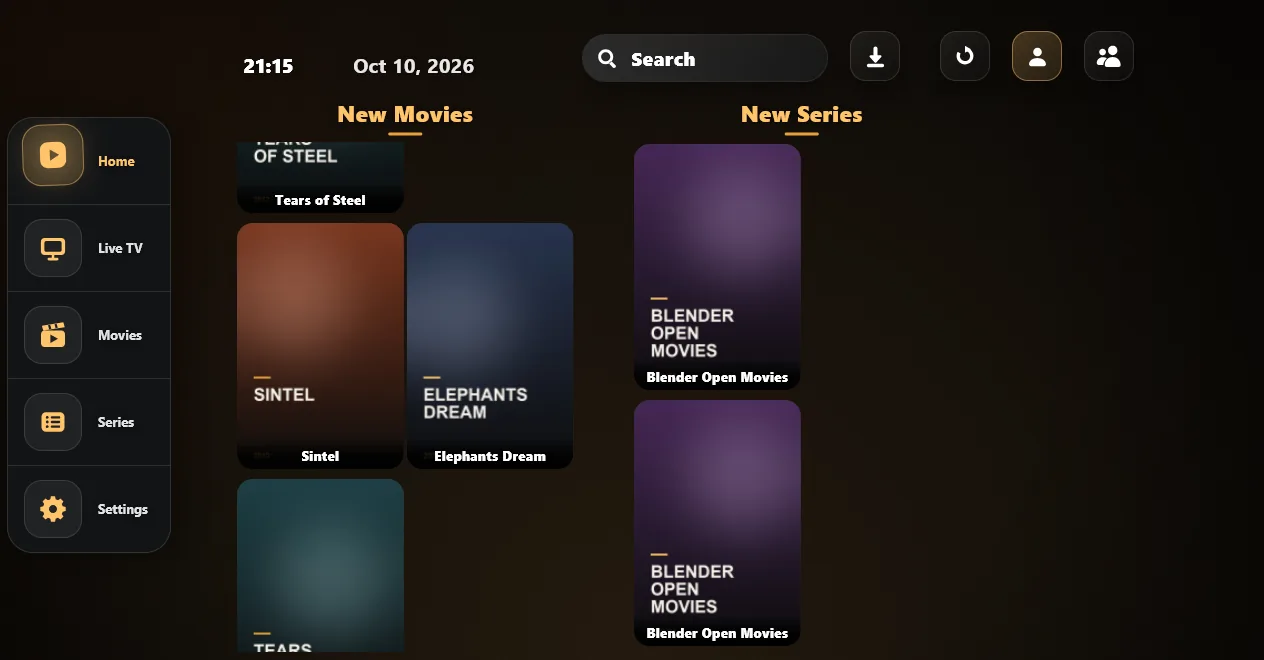
Amber Player is a media player, and nothing else. It comes with no channels, films or series, and it does not provide, host or sell any. Everything you watch comes from a service you already have and sign in to yourself.
Everything your service sends, in the right order.
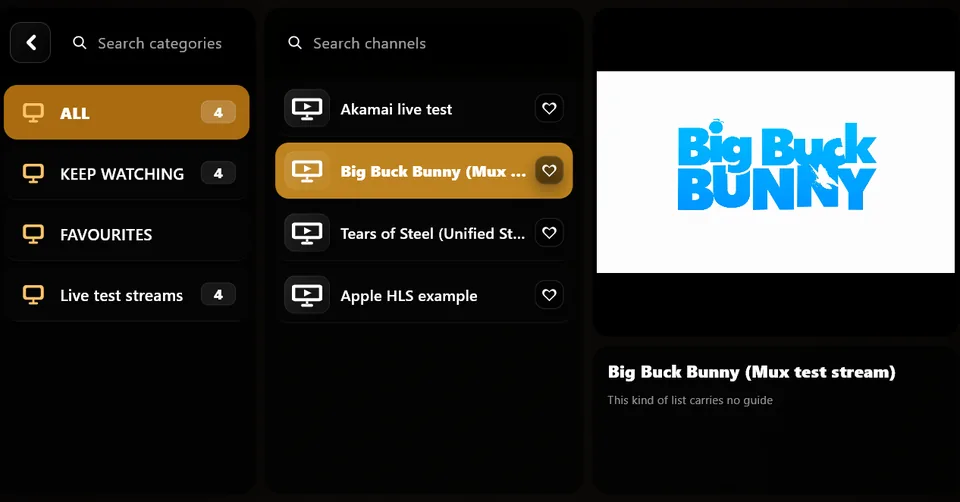
Live TV
Categories and channels, with what is on now and next. Where your service sends no guide, the app fills it in from open listings. Several channels on one screen when you want them.
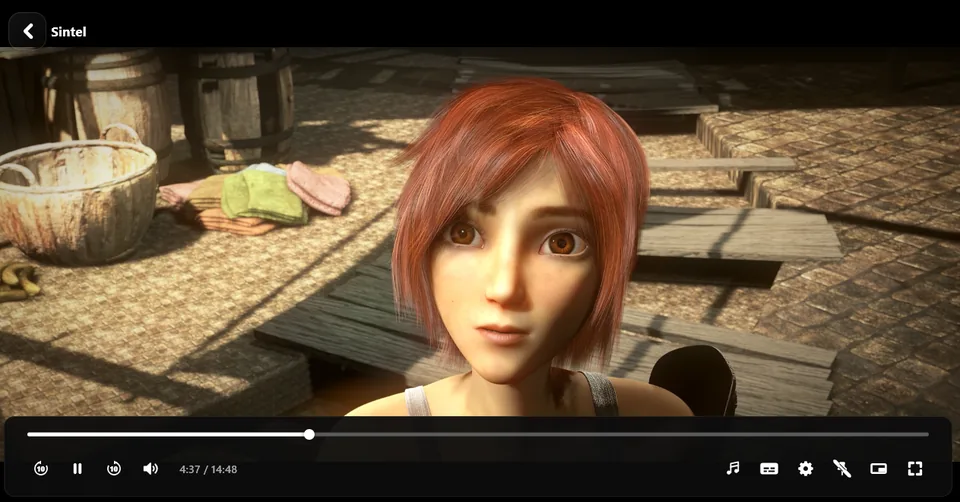
Films and series
Searchable and sortable, with favourites, episode lists and carrying on where you left off. Search finds a title whether or not you type the accents.
Downloads
Keep a film or an episode on the device and watch it when the line is bad, or gone. Downloads queue up and carry on after a stop.
Made for every screen
A window on the computer, a hand on the phone, a remote on the television. Twenty languages, parental control, subtitles, audio tracks and playback speed.
A closer look.


Three steps.
Download it
The download page offers the right package for the device you open it on, and says how to install it. On a television, it gives a short address to type with the remote.
Sign in to your service
With the details your service gave you: an account, a playlist address or file, or a short code. The app fills itself in — channels, catalogues and the guide.
Keep it after thirty days
Every device runs thirty days free. After that, a licence on your Amber account keeps up to five of your devices going. If your service gave you a code, the app may be free for you — see below.
One licence, up to five devices.
Try it for thirty days on every device first. When you buy, the licence goes on your Amber account, and every device you sign in to that account on — computer, phone or television — is licensed with it, up to five at once.
2 years
Save 15%- Every part of the app
- Updates for two years
- Up to five devices
Lifetime
One payment- Every part of the app
- Updates for as long as there are any
- Up to five devices
Prices in US dollars. You receive a key by email; type it on your account page or in the app under Settings, Licence. Time you buy is added to what is left, never instead of it. Five devices at once means five signed in at the same time: take one off on the account page and another can take its place. Refunds within fourteen days, no reason needed.
Some services include the app.
Some services give their customers a short code to sign in with instead of a server address. While you are signed in with a code that works, the app is free on that device — your service has arranged it. If the code stops working, the device goes back to its own trial or licence.
What you watch stays yours.
Nothing about what you watch
No analytics, no advertising, no tracking. What you watch, search for and type in the app is never sent to us.
Your sign-ins stay on the device
The details for your service are kept in the device's own protected store and go only to your service. We never see them.
What our server keeps
Only what the licence needs: your Amber account's email, until when it runs, and the names of the devices signed in to it. The whole account is in Privacy.
Before you download.
Does the app come with channels?
No. Amber Player is a player: it plays what the service you sign in to sends it and has no list of its own. Without a service of your own, it shows an empty screen.
Will it work with my service?
It works with Xtream Codes sign-in, an M3U playlist — an address or a file — a single stream address, and a short code where your service gives one. Thirty days free on every device is time enough to find out.
What happens after thirty days?
The app stays open and everything you saved stays where it is, but nothing plays until a licence is on. Buy one, type the key on your account, and sign in to that account in the app: it plays again at once, on every device signed in to it.
Do I need an Amber account?
Not for the thirty days, and not while you are signed in with a code from your service. You open one at amberplayer.com/account when you want a licence, so it can cover more than one device.
Why does my computer or phone warn me when I install it?
Because the app comes from this site rather than from a store. Windows says it does not recognise the file — choose More info, then Run anyway. Android asks you to allow your browser to install apps. Nothing is wrong with the file; every app handed out this way meets the same questions.
How do I get it onto my television?
Most televisions have no browser. Install the free Downloader app from the TV's own store, open it, and type the short address shown on the download page.